How to Turn an Old SSD into External Storage with an SSD Enclosure
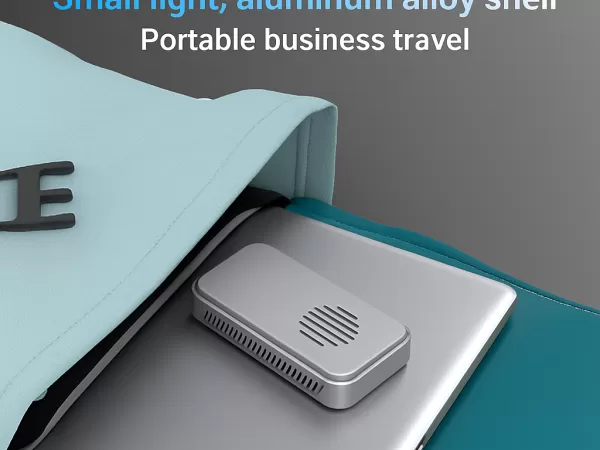
When upgrading storage in a desktop PC, laptop, or workstation, users often replace an existing SSD with a faster or higher-capacity model. In many cases, the removed drive is still fully functional but ends up unused. From both a cost-efficiency and sustainability perspective, repurposing an internal SSD as external storage is a practical and reliable solution.
With the appropriate external connection hardware, an internal solid-state drive can be converted into a portable storage device suitable for file transfer, data backup, and storage expansion. This approach requires minimal technical expertise and offers a low-barrier upgrade path for both individual users and professional environments.
Even when an SSD is no longer intended for active system use, proper data handling remains important. Solid-state drives can retain recoverable data, and external connectivity allows users to back up files or perform secure data erasure before reuse or disposal.
Benefits of Portable SSD Storage
Portable SSD storage enables flexible workflows across multiple devices and locations. By reusing an internal SSD, users can build a compact, high-performance external storage solution without purchasing a new drive.
Key benefits include:
Extended hardware lifecycle
Reusing existing SSDs maximizes return on hardware investment and reduces electronic waste.Compact and shock-resistant design
SSDs contain no mechanical components, making them more durable and reliable than traditional hard drives.Game and media storage expansion
External SSDs are well suited for large game libraries, video files, and creative media assets.System maintenance and recovery
Ideal for system cloning, recovery drives, firmware updates, and long-term data backups.
SSD Enclosure vs Adapter vs Docking Station
There are multiple ways to connect an internal SSD externally. Each solution serves a different purpose.
SSD Enclosure
An SSD enclosure is a fully enclosed housing designed for long-term use. It provides both data connectivity and physical protection, often featuring aluminum construction or integrated heat dissipation to maintain stable performance.
SSD enclosures are the preferred solution for portable external storage and daily use.
SSD Adapter
An adapter converts interface protocols, such as SATA to USB or NVMe to USB, without enclosing the drive. While lightweight and convenient for temporary access, adapters offer little to no physical protection and are not recommended for portable or long-term deployment.
SSD Docking Station
Docking stations are commonly used for disk maintenance, testing, and bulk data transfer. Some models support multiple drive types, including SATA and M.2. Due to their open design, docking stations are not suitable for permanent external storage or mobile use.
Data Preparation and Drive Health Check
Before removing an SSD from a system, it is recommended to back up all important data. If the drive contains an operating system, performing a full disk clone can simplify system migration and reduce downtime.
Checking drive health while the SSD is still installed provides useful information such as wear level, bad block count, and estimated remaining lifespan. This helps determine whether the drive is suitable for reuse as external storage.
If the SSD has already been removed, it can still be connected via an enclosure or adapter to retrieve data or perform formatting.
Hardware Required to Convert an SSD into External Storage
To repurpose an internal SSD as an external drive, the following components are required:
1. Compatible SSD Enclosure, Adapter, or Dock
Must match the SSD interface type (SATA or NVMe)
Must match the physical form factor (2.5-inch or M.2)
Should support high-speed interfaces such as USB-C, USB 3.2 Gen 2, or Thunderbolt
2. Connection Cables
Most enclosures include the required cables, but interface compatibility should be verified in advance.
3. Installation Tools
A small screwdriver is typically required for securing M.2 or 2.5-inch SSDs inside an enclosure.
When selecting an enclosure, users should evaluate interface protocol support, thermal design, and system compatibility. Well-designed enclosures help maintain stable performance during extended workloads.
Step-by-Step Process to Make an External SSD
Step 1: Open the Enclosure
Most enclosures use a sliding cover, snap-fit design, or small screws.
Step 2: Install the SSD
2.5-inch SATA SSD: Align the connector and secure the drive with screws.
M.2 SSD: Insert the drive at an angle, press it down, and secure it with the mounting screw.
Step 3: Close the Enclosure
Ensure the drive is firmly secured and the enclosure is fully closed to prevent dust or physical damage.
Step 4: Connect to a Computer
Use the supplied USB-C, USB-A, or Thunderbolt cable. Most operating systems will automatically detect the drive.
Step 5: Back Up Data
If no prior backup was performed, copy important files before formatting.
Step 6: Format and Partition the Drive
Formatting optimizes performance and improves compatibility across different operating systems. This step can be skipped if existing data structures need to be preserved.
Adapters and docking stations follow a similar process but expose the SSD without protection, making them unsuitable for portable use.
Technical Summary
Converting an internal SSD into an external storage device is a cost-effective and technically straightforward way to expand storage capacity. With a compatible SSD enclosure, users can create a portable, durable, and high-performance external drive without complex configuration.
This solution is well suited for data migration, system backups, gaming storage expansion, and professional portable workflows.