Laptop Docking Station and Dual Monitors: The Complete Setup Guide
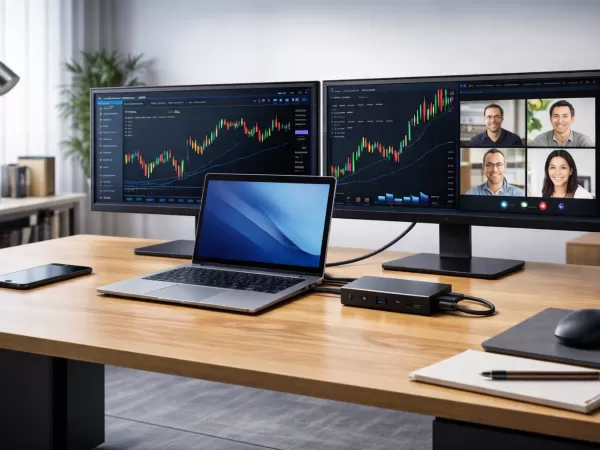
In modern work environments, screen size—not CPU performance—is often the real productivity bottleneck. Ultrabooks are powerful, but their single built-in display limits multitasking efficiency.
This is where a laptop docking station with dual monitors becomes essential. With the right dock, a lightweight laptop can instantly transform into a full desktop workstation—using just one cable.
Why a Docking Station Is Necessary for Dual Monitors
Most modern laptops offer limited video outputs:
One HDMI port, or
USB-C ports only
A docking station solves this limitation by acting as a central signal hub. Through high-bandwidth connections such as USB-C Alt Mode, USB 3.0, or Thunderbolt, the dock converts a single video stream into multiple HDMI or DisplayPort outputs—enabling a true extended desktop across two external monitors.
This is commonly referred to as the “One-Cable Solution”.
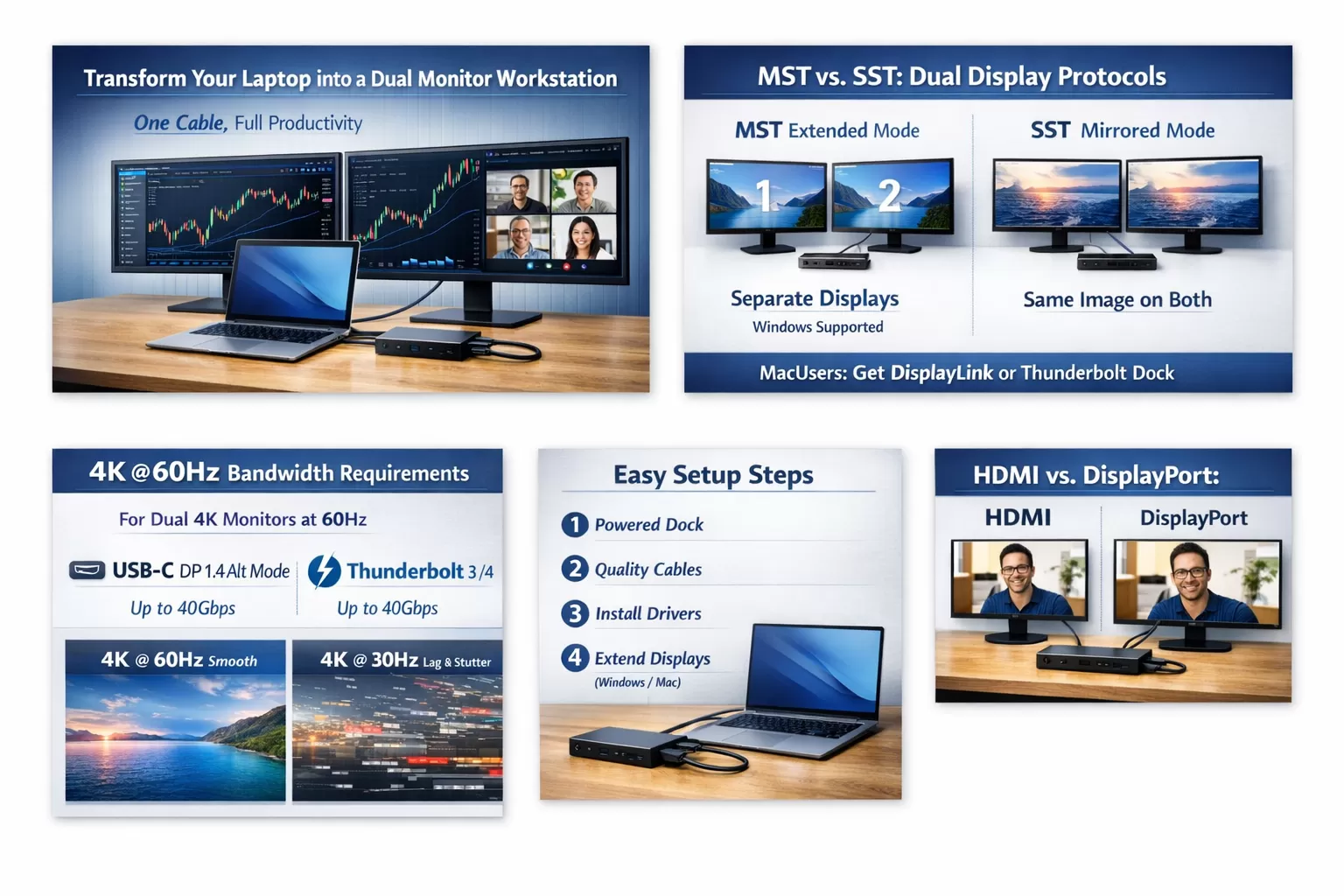
MST vs SST: The Key Difference That Determines Dual Display Success
Many dual-monitor issues are caused by misunderstanding display protocols.
MST (Multi-Stream Transport)
Enables each monitor to work independently
Supports extended desktop mode
Fully supported by Windows systems
Ideal for most PC users
SST (Single-Stream Transport)
Mirrors the same image to all screens
Common limitation on standard USB-C docks for macOS
MacBook Users Take Note:
To achieve real dual-monitor extension on macOS, you need either:
A DisplayLink-certified docking station, or
A Thunderbolt 3 / Thunderbolt 4 dock
Bandwidth Matters: Why 4K@60Hz Is Not Guaranteed
Having multiple ports does not always mean high resolution.
USB-C Gen 1 (5Gbps) often limits dual monitors to 4K@30Hz
This causes mouse lag and visible screen stutter
For smooth professional use, ensure support for:
USB-C with DisplayPort 1.4 Alt Mode, or
Thunderbolt 3 / Thunderbolt 4 (up to 40Gbps)
These standards comfortably support dual 4K monitors at 60Hz.
HDMI or DisplayPort: Which Should You Choose?
HDMI
Universal compatibility
Ensure HDMI 2.0 or higher for 4K@60Hz
DisplayPort
Higher refresh rate support
Better for workstation monitors
Supports daisy-chaining (MST)
For productivity setups, DisplayPort is usually the better choice.
Recommended Setup Steps for Stability
Use a powered docking station
Avoid passive hubs for dual monitors.Choose certified cables
HDMI 2.0 / DP 1.4 cables prevent flicker and signal loss.Install required drivers
DisplayLink docks require driver installation.Configure OS display settings
Windows: Display Settings → Extend displays
macOS: Displays → Arrangement → Disable mirroring
Final Thoughts
A laptop docking station with dual monitors is no longer a luxury—it is a productivity upgrade. The key is choosing the correct protocol, ensuring sufficient bandwidth, and matching the dock to your operating system.
With the right docking station, your laptop becomes a true command center—without compromises.