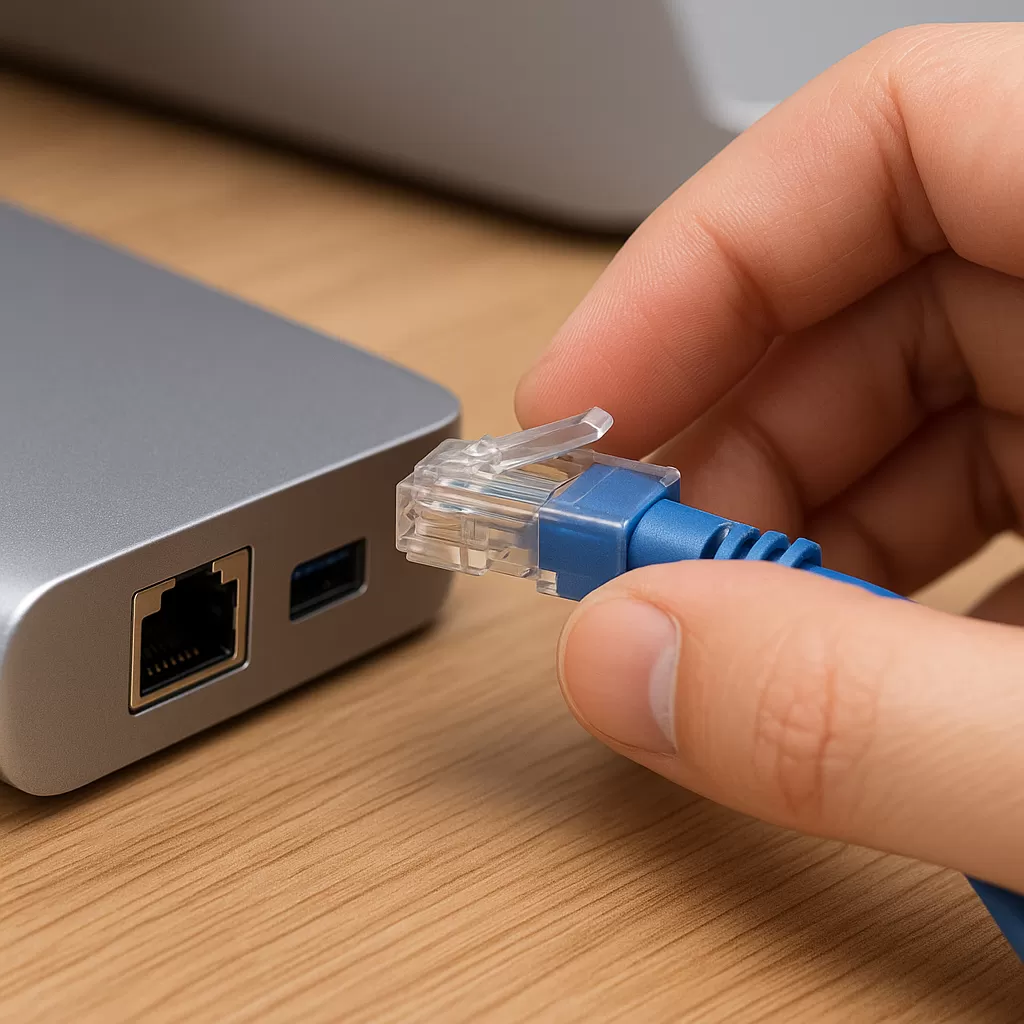
USB-C Hub Ethernet Not Working? 5 Effective Fixes for Windows & macOS
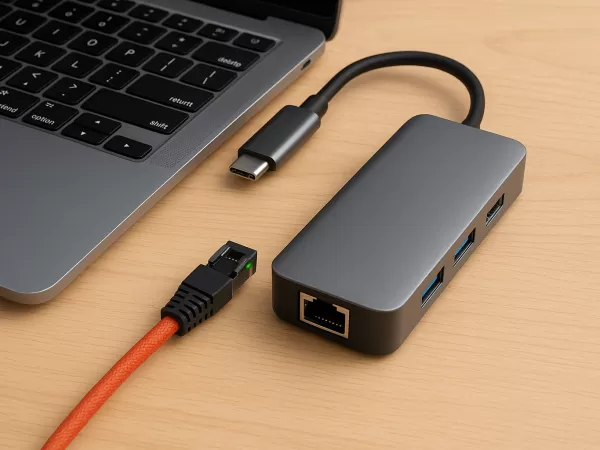
Modern laptops are becoming thinner and lighter—but with that elegance comes a common trade-off: fewer built-in ports.
That’s why USB-C hubs (or docking stations) have become essential to today’s workspace. Beyond expanding USB and HDMI ports, a hub often includes a Gigabit Ethernet jack, offering a faster and more stable wired connection than Wi-Fi.
So when you plug in the cable and see “No Internet” or “Unidentified Network”, frustration is understandable.
Is the hub faulty? Or is your system simply misconfigured?
Before assuming hardware failure, try the following verified troubleshooting steps.
Why Your USB-C Hub’s Ethernet Port Might Stop Working
A USB-C hub handles multiple data streams at once. Ethernet, especially at gigabit speeds, requires stable bandwidth. When the connection fails, common causes include:
Loose or dusty connectors
Driver conflicts, especially after Windows or macOS updates
Incorrect IP/DHCP configuration
Insufficient hub power, caused by too many peripherals drawing power
Faulty or aging Ethernet cable (RJ45)
Understanding these factors helps narrow down the root cause quickly.
5 Effective Fixes to Restore Your Ethernet Connection
1. Start with the Basics: Rule Out Cable & Router Issues
This is simple—but often the real culprit.
Check the indicator lights
Most USB-C hubs have LED indicators near the RJ45 port:
Lights on or blinking → Physical connection detected
No lights → Cable, port, or router may not be working
Try another Ethernet cable
Worn-out connectors or internal wire breaks are extremely common.
Bypass the hub for testing
Connect the cable directly to your laptop’s built-in Ethernet port (if available)
OR use a simple USB-to-Ethernet adapter
If direct connection works → The issue is likely with the hub
If direct connection fails → Check your router or ISP
2. Inspect and Clean the Physical Port
USB-C hubs are frequently tossed into bags, accumulating dust inside the RJ45 port.
Look for debris inside the Ethernet jack
Use compressed air or a soft brush to clean it
When inserting the cable, ensure you hear a firm “click”
A loose latch means the connection cannot be established.
3. The Power of a Full Reset (More Than Just Rebooting Your Laptop)
You’re not just resetting the computer—you’re resetting the entire network chain.
Disconnect everything
Unplug the hub from your laptop
Remove all devices from the hub (including power)
Wait 30 seconds
Let internal capacitors fully discharge.Restart the router
Unplug its power for 1 minute before turning it back on.Reconnect in this order:
Laptop → USB-C hub → Ethernet cable
Surprisingly, this resolves a large percentage of intermittent failures.
4. Fix Driver & Software Issues (Critical Step)
For Windows Users
Right-click Start → Open Device Manager
Expand Network adapters
Locate your USB Ethernet device
(Names often include Realtek, ASIX, or USB Gigabit Ethernet)
Now choose one of the following fixes:
Option A: Update the driver
Right-click → Update driver → Search automatically
Option B: Disable + Enable (more effective)
Right-click → Disable device
Wait 5 seconds → Right-click → Enable device
This forces Windows to reinitialize the network interface.
For macOS Users
macOS may not automatically create a service for new USB Ethernet devices.
Open System Settings > Network
Look for USB 10/100/1000 LAN or similar
If it’s missing:
Click “+” (Add Service) → Add the USB Ethernet interfaceTo refresh IP settings:
Select the interface
Go to Details > TCP/IP
Click Renew DHCP Lease
This fix is especially useful if the cable "connects" but websites won't load.
5. Last Resort: Reset Network Settings
If configuration files are corrupted, resetting may be necessary.
Windows:
Settings → Network & Internet → Status → Network Reset
⚠ Note: Saved Wi-Fi passwords will be erased.
Pro Tips: Keep Your Hub & Router Running Smoothly
✓ Maintain good ventilation
Gigabit Ethernet generates noticeable heat.
Avoid covering the hub with books or objects—overheating may trigger protection shutdown.
✓ Keep your router’s firmware updated
Many compatibility issues are fixed through firmware patches.
✓ Treat RJ45 connectors carefully
Always press the latch when unplugging.
Forcing it out can bend internal contacts.